
Computer Memory
Computer memory is a device that stores data, information, or instructions either for a short time (temporary) or for a long time (permanent). It is made up of many storage units that keep binary information (0s and 1s) in the form of bits.
The memory is divided into small parts called cells. Each cell has its own unique address, which is used to store or find data. The addresses start from 0 and go up to the maximum size of the memory minus one.
For example, if a computer has 64K words of memory, it means it has 64 × 1024 = 65,536 cells. The addresses of these cells range from 0 to 65,535.
Features of Memory :
1. Location: Memory can be either internal or external. Internal memory, also called primary memory, is built inside the computer and includes registers, cache, and main memory (RAM). External memory is separate from the computer and includes storage devices such as hard disks, tapes, and USB drives.
2. Capacity: Capacity refers to how much data memory can store. The storage capacity of internal memory is measured in bytes or words, where a word may be 8, 16, or 32 bits. The external memory capacity is also measured in bytes, such as KB, MB, GB, or TB.
3. Access Methods: Memory can be accessed in four ways.
- Direct Memory Access (DMA): Allows I/O devices to directly read or write data from main memory without CPU help.
- Sequential Access Method (SAM): Data is read in sequence, one after another, like in tapes.
- Random Access Method (RAM): Data can be directly accessed from any location, such as jumping straight from A to Z.
- Associative Access Method: Data is retrieved based on its content or key rather than just its address, making searches faster.
4. Unit of Transfer: This is the amount of data transferred at a time. In internal memory, the transfer unit is usually equal to the word size. In external memory, the transfer unit is larger than a word and is often referred to as blocks.
5. Performance: Memory performance is measured in three ways. (a) Access Time: The time taken to complete a read or write operation once an address is given. (b) Memory Cycle Time: The total time needed to access one memory location and prepare for the next. (c) Transfer Rate: The speed at which data can be transferred to or from memory, which may differ between internal and external devices.
6. Physical Types: Memory can be of different physical forms, such as magnetic memory, semiconductor memory, magneto-optical memory, and optical memory.
7. Organization: This refers to how the bits are physically arranged or structured in memory.
8. Physical Characteristics: Memory can behave in different ways. Volatile memory (like RAM) requires power to keep data, and all information is lost when power is cut. Non-volatile memory keeps data permanently, even without power. Non-erasable memory (like ROM) is programmed during manufacturing and cannot be erased or rewritten later.
Classification of Memory:
The following figure represents the classification of memory:

Primary or Main Memory
Primary memory, also called main memory, is the memory that directly communicates with the CPU, cache, and auxiliary memory. It stores programs and data that the processor needs while working. When a program is run, the CPU first loads it from secondary storage into the main memory and then starts execution.
Accessing data from primary memory is much faster because it is located close to the CPU and often uses registers or cache for quick response. However, primary memory is volatile, meaning all stored data is lost if power goes off and it is not saved. It is also more expensive and smaller in capacity compared to secondary memory.
Primary memory is mainly divided into two types:
- RAM (Random Access Memory)
- ROM (Read-Only Memory)
Random Access Memory (RAM)
Random Access Memory (RAM) is a fast type of main memory that the CPU can access directly. It is a hardware component used to temporarily store data, programs, or program results while the computer is running. RAM allows both reading and writing of data, but since it is volatile, all information stored in it is lost when the computer is turned off or there is a power failure. The special feature of RAM is that data can be accessed randomly, meaning any location in memory can be reached directly at any time.
There are two main types of RAM:
- SRAM (Static RAM)
- DRAM (Dynamic RAM)
Advantages of RAM
- It is a faster type of memory in a computer.
- It requires less power to operate.
- The program loads much faster
- More RAM increases the performance of a system and can multitask.
- Perform read and write operations.
- The processor can read information faster than a hard disc, floppy, USB, etc.
Disadvantages of RAM
- Less RAM reduces the speed and performance of a computer.
- Due to volatility, it requires electricity to preserve the data.
- It is expensive than ROM
- It is unreliable as compared to ROM
- The Size of RAM is limited.
Read-Only Memory (ROM)
ROM is a type of memory chip that stores information permanently. It is called “read-only” because we can only read the data; we cannot change or delete it. ROM stores important instructions needed to start or boot a computer. It is non-volatile, which means the data stays even when the power is turned off.
Advantages of ROM
- It keeps data even when the power is off.
- It doesn’t need to be refreshed like other memory types.
- Data is stored permanently.
- It is easier to test and can hold more data than RAM.
- The data cannot be changed by mistake.
- ROM is cheaper than RAM.
- It is simpler and more reliable than RAM.
- It helps start the computer and loads the operating system.
Disadvantages of ROM
- You cannot change or update the stored data.
- It is slower than RAM when reading data.
- It takes about 40 minutes to erase the data using ultraviolet light.
Types of ROM :
Mask ROM: This is the oldest type of ROM, where the data is written during the manufacturing process. It cannot be modified after production, making it suitable only for fixed, unchangeable instructions.
PROM (Programmable Read-Only Memory): This type of ROM is blank when made and can be programmed once using a special device called a PROM programmer. Once the data is written, it cannot be changed or erased.
EPROM (Erasable Programmable Read-Only Memory): EPROM can be erased and reprogrammed multiple times. The data is erased using ultraviolet (UV) light, and then it can be reprogrammed with new data.
EEPROM (Electrically Erasable Programmable Read-Only Memory): This type of ROM can be erased and reprogrammed electrically using software. Unlike EPROM, it does not need UV light and allows selective erasing and rewriting of data.
Secondary Memory
Secondary memory is used to store a large amount of data for a long time. It is also called external memory because it includes storage devices like hard drives, USB drives, CDs, DVDs, and flash drives. These devices help save files, programs, and other data permanently.
Secondary memory is cheaper but slower than the main (primary) memory. The CPU cannot read data from secondary memory directly. First, the data is moved to RAM (Random Access Memory), and then the processor can use or change it.
Features of Secondary Memory:
- Secondary memory works more slowly than primary (main) memory
- It is non-volatile, which means data is not lost even when the power is turned off.
- It can hold large amounts of different kinds of data, such as audio, video, images, text, and software.
- All data stored in secondary memory stays safe and permanent until it is deleted by the user.
- It uses optical (like CDs, DVDs) and magnetic (like hard disks, magnetic tapes) storage devices to save data.
Cache Memory
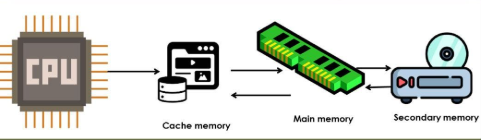
Cache memory is a small and fast type of memory placed between the CPU and the main memory (RAM). It stores the data and instructions that the CPU often uses, which helps the computer work faster. Because of its speed and location, it is also called CPU memory. Cache memory helps reduce the time it takes for the CPU to get data from the main memory.
Levels of Cache Memory:
L1 Cache (Level 1):
- Also called the primary cache or internal cache.
- Built directly inside the CPU.
- Very fast but small in size (usually 8 KB to 128 KB).
L2 Cache (Level 2):
- Known as secondary cache or external cache.
- Located near the CPU, but not inside it.
- Slower than L1 but larger (128 KB to 1 MB).
L3 Cache (Level 3):
- Used in high-performance computers.
- Found on the motherboard or shared between CPU cores.
- Slower than L1 and L2, but much bigger (up to 8 MB or more).
Advantages of Cache Memory:
- Cache memory is much faster than main memory (RAM), which helps the CPU work quickly.
- It stores frequently used data and instructions, reducing the time the CPU takes to fetch them.
- It decreases the time needed to access data from the main memory, making the system more efficient.
- Since it is placed near or inside the CPU, it provides quicker access to important data.
Disadvantages of Cache Memory:
- Cache memory is more costly than other types of memory like RAM and hard drives.
- It has a small storage capacity, so it can only hold a limited amount of data.
- Users cannot choose what gets stored in cache memory—it is managed automatically by the system.
- If the data needed by the CPU is not in the cache (called a cache miss), then it must still get the data from slower memory, which reduces speed.
Virtual Memory:
Virtual memory is a technique used by computers to make the system’s RAM (main memory) appear larger than it actually is. When the RAM is full, the computer temporarily moves some data from RAM to a special space on the hard drive called the paging file or swap space. This allows the computer to run more programs at the same time, even if the physical RAM is limited. Virtual memory helps improve multitasking, but is slower than using actual RAM because reading data from the hard drive takes more time.
Component of Virtual Memory:
Virtual memory consists of several important components that work together to manage memory efficiently.
- Physical Memory (RAM): This is the actual hardware memory inside the computer where data is stored temporarily for quick access by the CPU.
- Secondary Storage: This refers to the hard drive or SSD where part of the virtual memory is stored when the RAM is full. This space on the hard drive is called the paging file or swap space.
- Paging File / Swap Space: This is the reserved area on the secondary storage used to hold data that has been moved out of the RAM to free up space.
- Page Table: This is a data structure maintained by the operating system that keeps track of where each piece of data is located — whether it’s still in RAM or has been moved to the paging file. Together, these components allow the computer to extend its usable memory beyond the physical RAM by swapping data between RAM and the hard drive.
Need Virtual Memory
Virtual memory is important because it allows a computer to handle more data and run more programs than the physical RAM alone can support. It acts as a backup when RAM is full, ensuring that the system continues to run smoothly without slowing down or crashing. It also makes multitasking possible and helps reduce hardware costs.
Here are the main reasons why virtual memory is needed:
To Run Large Programs: Some programs require more memory than what is available in RAM. Virtual memory allows these programs to run by using hard drive space as extra memory.
To Support Multitasking: When many programs are open at once, RAM can fill up quickly. Virtual memory helps by moving less-used data to the hard drive, so the system can keep working efficiently.
To Prevent System Crashes: Without virtual memory, a full RAM can cause the system to freeze or crash. Virtual memory ensures there’s always extra space available to keep the computer stable.
To Improve Memory Management: It helps the operating system manage memory better by keeping frequently used data in RAM and moving inactive data to the hard drive.
To Save Costs: Instead of upgrading to more physical RAM, virtual memory uses existing hard drive space, which is cheaper and often already available.
Advantages of Virtual Memory
- Virtual Memory allows the system to run large programs and multiple applications even if the physical RAM is limited.
- Virtual Memory enables several programs to run at the same time without running out of memory.
- Virtual Memory reduces the need to install large amounts of physical RAM, as part of the hard drive is used as extra memory.
- Virtual Memory prevents one program from accessing another program’s memory, improving security and stability.
Disadvantages of Virtual Memory
- Accessing data from the hard disk (used as virtual memory) is much slower than accessing RAM.
- If the system relies too heavily on virtual memory, it may constantly swap data between RAM and disk, causing severe slowdowns.
- Frequent hard disk usage increases energy consumption, especially in older devices with spinning disks.
- Continuous read/write operations to SSDs used as virtual memory can reduce their lifespan over time.
- Managing virtual memory requires more effort from the operating system, including page replacement and protection mechanisms.
Memory Hierarchy
Memory hierarchy refers to the structure of different types of memory in a computer system, arranged based on speed, cost, and storage capacity. It helps the system balance performance and cost by using faster, more expensive memory for frequently used data and slower, cheaper memory for long-term storage.
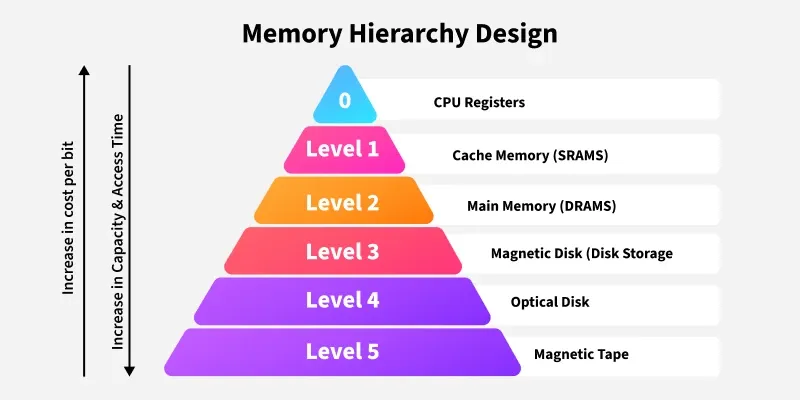
- At the top of the hierarchy are registers, which are the fastest and smallest type of memory located inside the CPU.
- Below that is cache memory, which is also very fast and stores frequently accessed data. It comes in levels like L1, L2, and L3.
- Next is the main memory (RAM), which stores the data and programs currently in use. It is larger than the cache but slower.
- After RAM comes secondary memory, such as hard drives and SSDs. These are much larger in size and used for long-term storage, but are slower than RAM.
- At the bottom is tertiary or off-line storage, like CDs, DVDs, and magnetic tapes, which are used for backups and archiving. They have the highest storage capacity but are very slow and are mostly used for rarely accessed data.
Characteristics of Memory Hierarchy
The memory hierarchy in a computer system is designed to balance speed, cost, and storage capacity. It has several important characteristics:
1. Capacity: This refers to the total amount of data the memory can hold. As we move from top to bottom in the memory hierarchy (from registers to hard disks), the capacity increases. Lower levels like secondary memory (e.g., hard drives) can store much more data than upper levels like cache or registers.
2. Access Time: This is the time it takes to read or write data. As we move from top to bottom, the access time increases, meaning lower-level memory is slower to access compared to higher-level memory like registers or cache.
3. Performance: The hierarchy is designed to keep frequently used data in faster memory, such as cache or RAM, so that the CPU can access it quickly. This improves the overall performance of the system.
4. Cost per Bit: The cost of memory increases as we move from the bottom to the top of the hierarchy. Faster memory, like registers and cache, is more expensive per bit than slower memory, like hard drives and external storage.
Advantages of Memory Hierarchy
The memory hierarchy offers several important advantages.
1. Performance: Frequently used data is stored in faster memory like cache, which reduces access time and significantly improves overall system performance.
2. Cost Efficiency: By combining small, fast memory (such as registers and cache) with larger, slower memory (like RAM and hard drives), the system balances cost and performance effectively, saving money and processing time.
3. Optimized Resource Utilization: The hierarchy leverages the benefits of both fast, small memory and large, cost-effective storage to maximize the computer’s performance.
4. Efficient Data Management: Data that is accessed often is kept close to the CPU in faster memory, while less frequently used data is stored in slower, larger memory, which helps in managing data efficiently.
Disadvantages of Memory Hierarchy
Despite its benefits, the memory hierarchy also has some drawbacks.
1. Complex Design: Coordinating data movement between different levels of memory adds complexity to the system’s design and operation.
2. Cost: High-speed memory components like registers and cache are expensive, which limits their size and increases the overall system cost.
3. Latency: Accessing data from slower memory levels such as secondary or tertiary storage, increases latency, which can reduce system performance.
4. Maintenance Overhead: Managing and maintaining various types of memory adds extra hardware and software overhead, making the system harder to maintain.
Memory Address
In computing, a memory address is a reference to a specific location in the computer’s memory. It is used by both hardware and software to find or store data. Memory addresses are usually written as a fixed-length number and treated as unsigned integers (always positive numbers).
These addresses work closely with how the CPU functions, using things like the instruction pointer and address registers to keep track of where data or instructions are located. Many programming languages also treat memory like an array, where each item has a unique address, making it easier to access and manage data in memory.
Types of Memory Addresses
In computer organization, memory addresses are categorized based on how and where they are used. The main types are: physical and logical memory addresses
Physical memory address:
A digital computer‘s main memory consists of many memory locations. Each memory location has a physical address which is a code. The CPU (or other device) can use the code to access the corresponding memory location. Generally only system software, i.e. the BIOS, operating systems, and some specialized utility programs (e.g., memory testers), address physical memory using machine code operands or processor registers, instructing the CPU to direct a hardware device, called the memory controller, to use the memory bus or system bus, or separate control, address and data busses, to execute the program’s commands. The memory controllers’ bus consists of a number of parallel lines, each represented by a binary digit (bit). The width of the bus, and thus the number of addressable storage units, and the number of bits in each unit, varies among computers.
Logical addresses
When a computer program runs, it needs to use memory addresses to execute instructions and to store or retrieve data. In older computers, the logical address (used by the program) and the physical address (actual location in RAM) were the same.
However, in modern computers that use virtual memory, most programs no longer access physical addresses directly. Instead, they use logical addresses (also called virtual addresses), which are mapped to physical addresses with the help of the memory management unit (MMU) and the operating system.
This system helps programs run smoothly without needing to know the actual physical memory layout, and it also provides security and isolation between different programs.
Memory Units
A memory unit is the part of a computer system that stores data, instructions, and results temporarily or permanently. It is essential because the CPU needs memory to process information and perform tasks. Memory is measured in terms of bytes, and each unit represents a different storage capacity. Some of the commonly used memory units are:
- Bit: The computer memory units start from bit. A bit is the smallest memory unit to measure data stored in main memory and storage devices. A bit can have only one binary value out of 0 and 1.
- Byte: It is the fundamental unit to measure data. It contains 8 bits or is equal to 8 bits. Thus, a byte can represent 2*8 or 256 values.
- Kilobyte: A kilobyte contains 1024 bytes.
- Megabyte: A megabyte contains 1024 kilobytes.
- Gigabyte: A gigabyte contains 1024 megabytes.
- Terabyte: A terabyte contains 1024 gigabytes.
Memory Packaging / Memory Module:
A memory module (also called memory packaging) is a small circuit board that contains memory chips. It is designed to be inserted into the memory slots of the computer’s motherboard. These modules provide the main memory (RAM) that the CPU uses to store and access data while working.
Types of memory module
1. DIP (Dual In-line Package):
DIP is one of the earliest forms of memory packaging where individual memory chips were mounted directly onto the motherboard through small pins. Each chip had two parallel rows of pins, which is why it was called “dual in-line.” This method was bulky, required manual placement, and was difficult to upgrade or replace. Because of these limitations, DIP packaging is no longer used in modern computers.
2. SIMM (Single In-line Memory Module):
SIMM modules were introduced after DIP to make installation and upgrading easier. They had 30-pin or 72-pin connectors and were widely used in computers during the late 1980s and early 1990s. However, in SIMM modules, the electrical contacts (pins) on both sides of the board were connected to the same signal, which limited data transfer speed. As a result, they were eventually replaced by faster modules like DIMM.
3. DIMM (Dual In-line Memory Module):
DIMM is the most common type of memory module used in modern desktop computers and servers. Unlike SIMMs, the pins on both sides of DIMM are independent, which allows for a wider data path and faster performance. DIMMs come in different versions such as SDRAM, DDR, DDR2, DDR3, DDR4, and the latest DDR5, each offering higher speed and efficiency. They usually have 168, 184, 240, or 288 pins depending on the generation.
4. SO-DIMM (Small Outline DIMM):
SO-DIMM is a smaller version of the DIMM module, designed for laptops, notebooks, and compact devices. They work the same way as DIMMs but take up less space, making them ideal for portable computers. SO-DIMMs also support DDR, DDR2, DDR3, DDR4, and DDR5 memory technologies. Because of their size, they usually have fewer pins compared to DIMMs, such as 200 or 260 pins, depending on the generation.
5. RIMM (Rambus In-line Memory Module):
RIMM modules were designed for Rambus DRAM (RDRAM), a type of memory technology that offered higher speed compared to traditional SDRAM. They were used in some high-performance systems during the late 1990s and early 2000s. However, RIMM was more expensive and generated more heat than DIMM modules, which made it less popular. Over time, RIMM modules were replaced by faster and more cost-effective DIMM technologies.
Error Detection and Correction:
In computer systems and data communication, errors can occur when data is stored in memory or transmitted from one device to another. These errors may be caused by electrical noise, hardware faults, or other disturbances. To ensure accuracy and reliability, techniques called error detection and correction are used.
1. Error Detection
Error detection techniques help to identify whether an error has occurred during data transmission or storage. Common methods include:
- Parity Bit: Adds an extra bit (0 or 1) to make the number of 1s either even (even parity) or odd (odd parity). If the parity does not match at the receiving end, an error is detected.
- Checksums: A value is calculated based on the sum of data bytes. The receiver recomputes the sum and compares it to check for errors.
- Cyclic Redundancy Check (CRC): Uses polynomial division to generate a special check value (CRC code) attached to the data. The receiver verifies it to detect errors.
2. Error Correction
Error correction techniques not only detect errors but also fix them automatically so that the correct data is recovered. Common methods include:
- Hamming Code: Can detect and correct single-bit errors and detect (but not correct) double-bit errors by using parity bits at specific positions.
- ECC (Error-Correcting Code) Memory: Used in servers and critical systems, ECC memory can detect and correct single-bit errors in RAM, preventing system crashes.
- Forward Error Correction (FEC): Used in communication systems, extra redundant bits are added so that the receiver can reconstruct the original data without needing retransmission.
Compiled by: Er. Basant Kumar Yadav